

Newspaper Templates – 4 Styles for Google Docs

- Year groups
- Years 5–9 (Key Stages 2–3)
- File type
- Google Docs
- Editable
- Yes


- Subject
- Writing, English
- Topic
- Newspaper, News Template
- Resource types
- Templates
- Editable
- Yes
From the author
About this resource
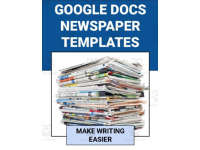
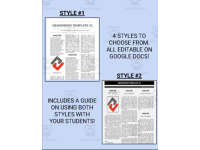
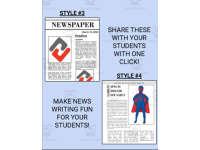
The six-page PDF links to four Google Docs newspaper styles. The guide explains individual and collaborative use of the first two styles, which use three columns. Two additional layouts offer different headline, image and article arrangements.
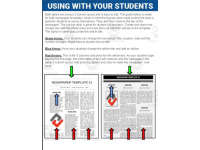
Choose a style, make a copy and replace its placeholder text and images with student reporting. Use individual copies or a shared class newspaper as described in the setup guide.
Related resources
More resources teachers may find useful
More resources on the same subject and topic.


In the classroom
Teaching tips & learning objectives

Learning objectives
Students write and format newspaper-style articles inside a fixed three-column layout.
Students collaborate on a single shared class newspaper document, each contributing their own article and byline.
Students practice basic Google Docs skills — making a copy, editing text, and sharing a link — as part of completing the assignment.

Teaching tips
Make and rename your own working copy of each style before sharing it, and keep the original link untouched as a backup, since the guide stresses this step to avoid losing the master template.
Choose Style 1 for independent writers and Style 2 when you want the whole class contributing articles to one shared newspaper, per the guide's own recommendation.
Have students submit finished work through whatever platform your class already uses (email, an LMS, or an app like Seesaw), since the guide lists several options rather than assuming one system.

Skills covered
Collaborative digital writing — students add their own article and byline to a shared Google Doc newspaper alongside classmates.
News-style formatting — students type and format article text inside a fixed three-column newspaper layout.
Digital file management — students make their own editable copy of a shared Google Doc before writing in it.

No reviews yet
Downloaded this resource? Tell other teachers how it went.
Resource details
Concepts & topics
Core concepts
 Core concepts
Newspaper writing
Collaborative writing
Digital templates
 Topics
Explore more
Categories this resource belongs to
Explore related searches


More to explore