



Classroom Seating Plan (Editable on Google Slides)



- Grades
- Not Grade Specific
- Pages
- 10
- File type
- Google Slide
- Editable
- Yes


- Topic
- Seating plan, Classroom layout
- Resource types
- Teacher Tools, Templates
- Editable
- Yes
Product description
From the author
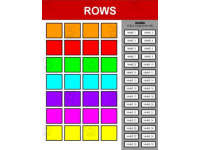
Seating plans are just one in a thousand tasks teachers must maintain. It becomes a burden after a while. This package contains an editable Google Slide file. The advantages are the seating plan is interactive, drag and drop, easy to change which student sits where and you can keep a personal copy in Google Drive!
Included are the following layouts:
• Rows
• Groups
• The U
• Round Tables
• Blank Room (add your own Tables)
Every classroom has such different seating arrangements and desks, so we also include a guide to customize the template to work based on your classroom!
Related resources
More resources teachers may find useful
24 related resources were found using this product's title, contributor, categories and tags.


In the classroom
Teaching tips & learning objectives

Teaching tips
Make your own copy of the Google Slides file before editing anything, since the shared link opens as read-only
Delete the four setup-guide slides and the closing thank-you slide once you've read them, leaving only the layout(s) you plan to use
Start from the Blank Room layout if none of the four preset arrangements (Rows, Groups, The U, Round Table) matches your classroom's actual desk setup
Good to know
Questions teachers ask about this resource
What happens if a student's name gets hidden behind a desk after dragging it into place?
This happens when the desk shape's layer sits above the name's layer. Selecting all the desks and using Arrange > Send to back moves them behind the names so every name displays on top again.

No reviews yet
Downloaded this resource? Tell other teachers how it went.
Resource details
Concepts & topics
Core concepts
 Core concepts
Classroom seating layout
Editable Google Slides template
Drag-and-drop arrangement
 Topics
Explore more
Categories this resource belongs to
Explore related searches
More to explore
You may also like


